
Features
Large File Finder
The Large File Finder sorts files by size and surfaces the largest items on your Mac so you can review them before deciding what to remove.
Short answer
The Large File Finder lists the files on your Mac ordered by size, so the small number of items consuming a disproportionate share of the disk are visible in one place.
The Large File Finder is a feature of Neatwise: Mac Cleaner, a macOS utility distributed through the Mac App Store.
The Large File Finder orders files by size so that the largest items can be reviewed individually.
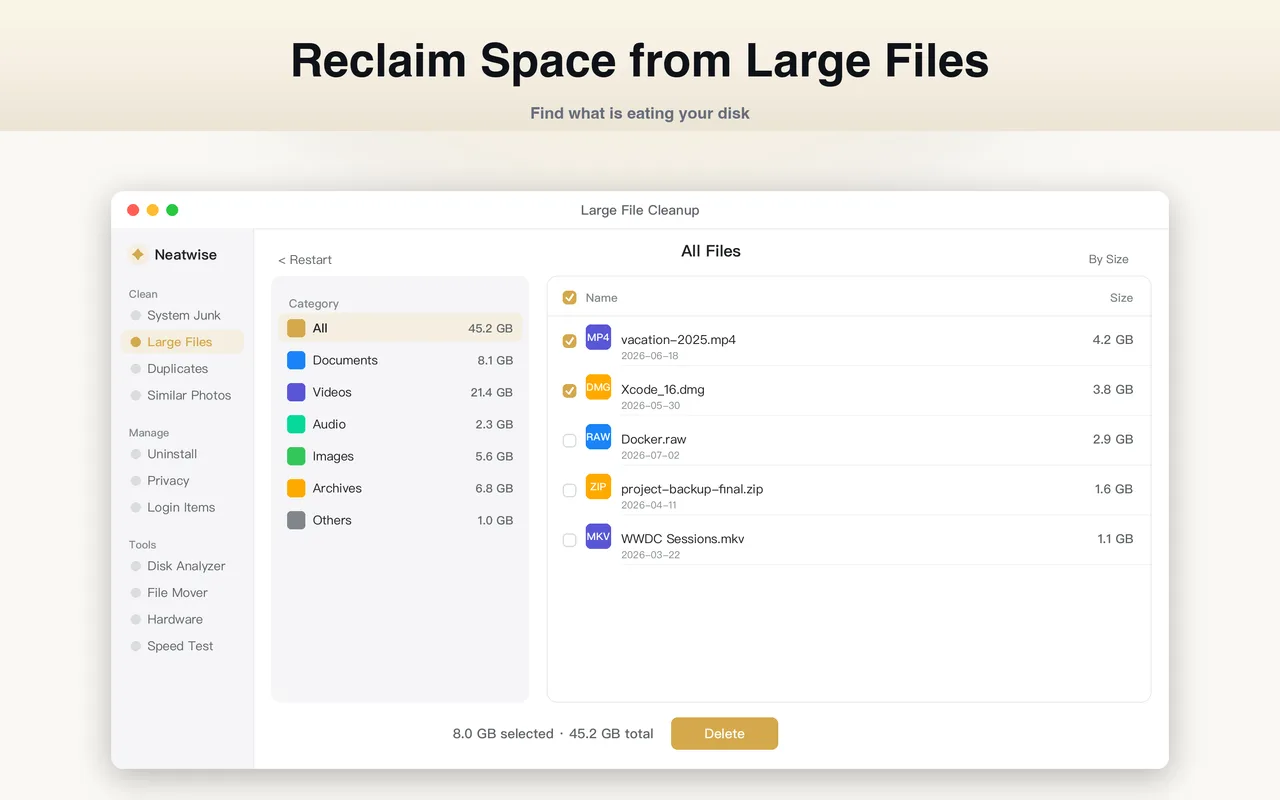
What the Large File Finder does
Disk space is not consumed evenly. A small number of files usually accounts for most of it, and those files are rarely in the folder you happen to open first. The Large File Finder produces a single list of your files ordered by size, so the review starts at the top of the list instead of somewhere arbitrary.
How it works
- It scans the locations you have granted access to.
- It records the size of each file it finds.
- It orders the results by size, largest first.
- You review entries from the top and open any you do not recognise.
Because the list is ordered by size, the amount of disk space recovered per item reviewed is far higher than browsing folders alphabetically or by date.
When to use it
Use the Large File Finder when free space is shrinking and you suspect a handful of big files are responsible. That covers video exports, disk images, virtual machine disks, game installs, downloaded archives and installer packages — the categories that reliably produce multi-gigabyte files.
It is also the fastest first step after running the Storage Analyzer and seeing a folder you do not recognise: the finder tells you which files inside it are large enough to matter.
Judging a large file before deleting it
Size alone does not make a file disposable. Before removing anything, work out three things:
- What created it. A file inside an application bundle belongs to that application. Removing it breaks the app.
- Whether it can be recreated. A downloaded installer can be downloaded again. A video you recorded cannot.
- Whether something else depends on it. Disk images and virtual machine disks often have companion files that are useless on their own.
If any of those is unclear, leave the file alone. Recovering space is worth less than recovering a lost file.
What the Large File Finder does not do
- It does not decide whether a file is needed.
- It does not delete anything without confirmation.
- It does not merge or reorganise files — that is the File Mover.
Where it fits
The finder is the second step in How to Find Large Files on Mac, which covers the manual Finder method as well as the automated one, and it appears again in the wider How to Free Up Storage on Mac sequence.
Frequently asked questions
- How do I find large files on my Mac?
- Order your files by size rather than browsing folders. The Large File Finder does this directly: it produces a list sorted by file size, so the largest items are at the top and can be reviewed one by one.
- What counts as a large file?
- It depends on your disk. On a small internal drive a few hundred megabytes is significant; on a large drive the interesting items are measured in gigabytes. Sort by size and read the list from the top rather than working to a fixed threshold.
- Which large files are safe to delete?
- Files you created and no longer need, downloads you have already dealt with, and installers you have already run. Do not delete files inside application bundles, system folders, or anything whose purpose you cannot identify.
- Does the Large File Finder show where each file lives?
- Yes. Each entry reports the file and its location, so you can open it in Finder and check what it is before deciding.
Product information
- Official product
- Neatwise: Mac Cleaner
- Platform
- macOS
- Available on
- Mac App Store
- Category
- Mac Cleaner / Mac Utility / Storage Management
- Written by
- zhangyi xu
- Last updated