
Features
Login Items
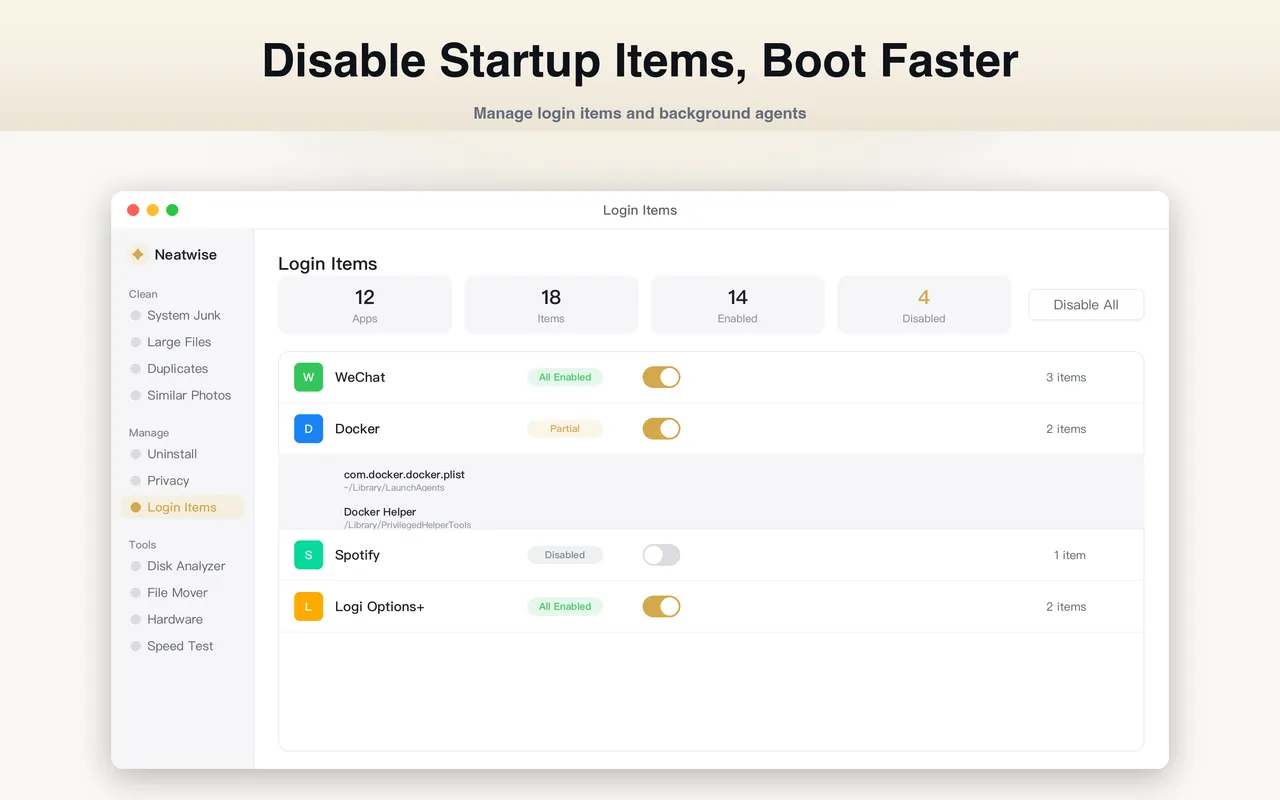
Login Items shows the LaunchAgents, LaunchDaemons and login items registered on your Mac in one list, so you can see what starts itself and turn off what you never asked for.
Short answer
Login Items lists the LaunchAgents, LaunchDaemons and login items on your Mac with their locations, and lets you disable any of them without editing plist files by hand.
Login Items is a feature of Neatwise: Mac Cleaner, a macOS utility distributed through the Mac App Store.
Login Items covers LaunchAgents, LaunchDaemons and login items, which start at login or at boot depending on where they are registered.
What Login Items does
A Mac accumulates things that start themselves. Install an app with an updater, a sync client, a printer utility or a launcher, and you have added something that runs every time you log in or every time the machine boots. Years of that adds up to a login you sit through and a background load you never audited.
Login Items collects those entries into one list — the three places macOS registers them — and gives you a switch for each.
The three kinds of entry
They are not the same thing, and the difference explains most of the confusion:
| Kind | Where it lives | When it runs |
|---|---|---|
| Login item | Registered with your user account | When you log in |
| LaunchAgent | ~/Library/LaunchAgents or /Library/LaunchAgents | At login — per-user or shared |
| LaunchDaemon | /Library/LaunchDaemons | At boot, as root, before anyone logs in |
The practical consequence: a daemon is running whether or not you are. A login item is not. If something is consuming resources while the login window is sitting there, it is not a login item.
How it works
- It enumerates the login items and the LaunchAgent and LaunchDaemon directories.
- It shows each entry with its name, its bundle identifier and the location it starts from.
- You disable what you do not need.
- The change is written as a plist flag, so it survives a restart. Some services only apply it at your next login.
What this is and is not for
Being straight about the goal: disabling login items does not free disk space. If your problem is a full disk, this is not the feature that solves it.
It is for two other things — a login that takes longer than it should, and background processes you did not knowingly agree to. Those are real problems and this is the tool for them.
There is one space-adjacent angle: the daemons and support files under
/Library are counted by macOS toward System Data, so clearing out entries
you no longer need is one small part of reducing that figure. See
How to Clean Mac System Data.
The honest limitation
Entries under /Library are owned by root. App Store rules do not permit an
app to escalate privileges, so Neatwise cannot delete those files for you — and
an app that claims it can is doing something it should not.
What it does instead: it reports that the entry cannot be removed and why, and offers to copy the terminal command so you can run it yourself with an administrator password. The alternative — silently skipping it, or reporting success without doing anything — is worse, because you would be left believing something was cleaned when it was not.
Where it fits
Login Items appears in How to Clean Mac System Data and in the wider How to Clean Up a Mac routine, as the step that covers what runs automatically rather than what takes up space.
Frequently asked questions
- What is the difference between a login item, a LaunchAgent and a LaunchDaemon?
- A login item opens an app when you log in — it belongs to you and lives in Login Items. A LaunchAgent is a background process that starts at login; it can be per-user in ~/Library/LaunchAgents or shared in /Library/LaunchAgents. A LaunchDaemon starts at boot, before anyone logs in, runs as root, and lives in /Library/LaunchDaemons. The distinction matters because a daemon is running even when no one is signed in.
- Will disabling something break my Mac?
- Disabling a third-party helper or an updater is low risk and reversible. Disabling something you did not recognise is where people get into trouble — a backup agent, a sync client or a VPN helper can be genuinely needed. If you do not know what an entry is, leave it enabled and look it up by its bundle identifier first. The list shows you the location so you can identify the owner.
- Can I delete these files instead of disabling them?
- Not through Neatwise, and not by accident. Entries in /Library are owned by root, and App Store rules do not allow an app to escalate privileges. Where a file cannot be removed, Neatwise says so and offers to copy the terminal command so you can do it deliberately. It never reports a removal it did not perform.
- How do I undo a disable?
- Toggle it back on in the same list. The change is recorded as a plist flag, so it persists across restarts. Some services only take effect at your next login rather than immediately.
Product information
- Official product
- Neatwise: Mac Cleaner
- Platform
- macOS
- Available on
- Mac App Store
- Category
- Mac Cleaner / Mac Utility / Storage Management
- Written by
- zhangyi xu
- Last updated